
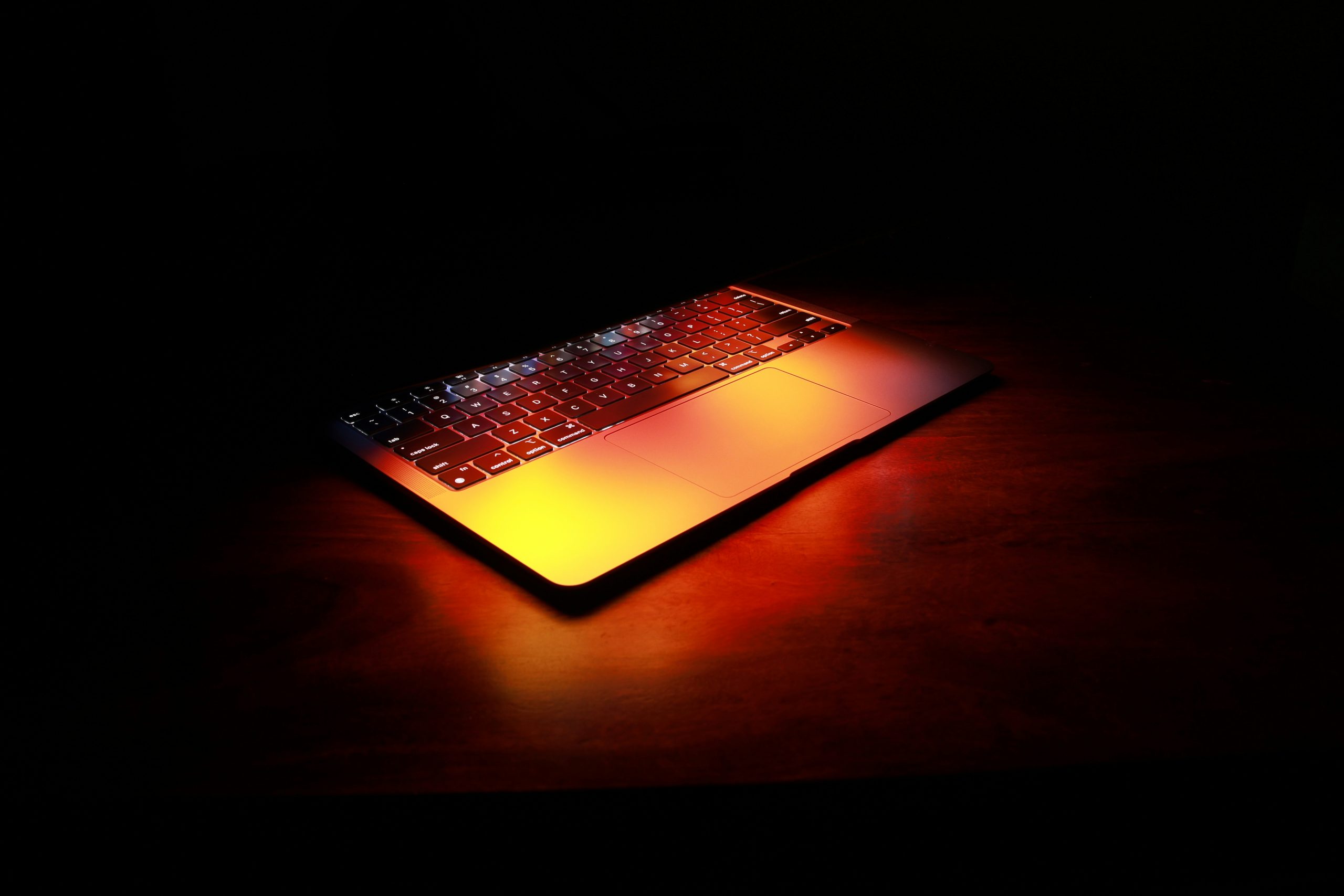
Does your laptop get incredibly hot during use? Are the fans always loud, or does it shut down without warning? A hot laptop is a clear signal that something is wrong, and leaving it can cause lasting damage to internal parts. Luckily, finding a laptop overheating fix is often possible.
This guide explains the main reasons a laptop gets too hot and gives you simple steps on how to cool down your laptop. We will also cover when it’s time to call in an expert.
Common Reasons Your Laptop is Running Hot
First, you need to understand the problem. Your laptop’s parts generate heat, and the cooling system is built to handle it. When that system has a problem, heat builds up quickly. Here are the main culprits:
- Blocked Air Vents: This is the most common issue. Dust and hair get sucked into the laptop and clog the air vents, trapping hot air inside.
- Failing Fan: The internal fan can get clogged with dust, which slows it down. Sometimes, the fan motor just fails over time.
- Old Thermal Paste: A special paste sits between the processor (CPU) and its cooling unit. After a few years, this paste dries out and stops transferring heat properly.
- Software Issues: Very demanding programs, or even computer viruses, can force your processor to work too hard and generate extra heat.
- Using it on Soft Surfaces: Placing your laptop on a bed or sofa blocks the air vents on the bottom, stopping cool air from getting in.
How to Cool Down Your Laptop: Simple Fixes to Try
Before calling for help, try these effective solutions:
- Give it Some Air: Always use your laptop on a hard, flat surface. A laptop stand is even better because it lifts the device and improves airflow.
- Clean the Vents: Turn your laptop off. Use short bursts of compressed air to blow dust out of the vents. It helps to hold the fan still with a paperclip so it does not spin too fast.
- Check Your Software: Open the Task Manager (on Windows) or Activity Monitor (on Mac) to see what programs are using the most processing power. Close anything you do not need.
- Scan for Viruses: Use your antivirus software to check for any hidden programs that could be straining your system.
When DIY Isn’t Enough: Signs You Need a Professional
If you have tried the fixes above and your laptop is still hot, the problem is likely internal. Trying to fix these issues yourself without the right tools can cause more damage. You should get professional help if:
- The laptop is still overheating after you cleaned the vents.
- You hear a grinding or buzzing noise from the fan.
- Your laptop is over three years old and has never been serviced.
- You are not comfortable opening your laptop’s case to clean the laptop fan or other parts.
These problems require taking the device apart, which is risky. For a safe and guaranteed solution, it is best to use a professional laptop repair service. Our technicians have the tools and experience to fix the problem correctly.
Why Choose FixGo for Your Laptop Repair in the UK?
At FixGo, we know you need your laptop for work and daily life. Our team of technicians in the UK can handle any overheating issue, from a deep clean to replacing a broken fan. We provide a quick and reliable service to get your laptop running cool and quiet again.
Don’t let your laptop overheat and cause permanent damage. If you are stuck, contact us today for expert advice and a free quote.
Leave a Reply